
![Save time and become a WordPress master by using the included Keyboard Shortcuts [part 2]](https://danielepais.com/journal/wp-content/uploads/2017/10/blogging-part2.jpg "Save time and become a WordPress master by using the included Keyboard Shortcuts [part 2]")
This is the second part, if you haven’t read the part one yet I suggest that you start from there; just follow this link.
In the previous blog post I have introduced you to the most useful keyboard shortcuts, mastering those to my opinion can help anyone to build a WordPress page in a much faster and productive way.
However, that was not all, there is more to come.
Now that you have had time to experience on your own and probably already chosen which one to use according to the type of page you build, whether this are for a simple blog, a community or for a business website it is time to show you a few more tricks.
WordPress Keyboard Shortcuts Part 2 – Formatting
The following are shortcuts that can be used with the default editor or with any of the text editor embedded in most of the major page builders.
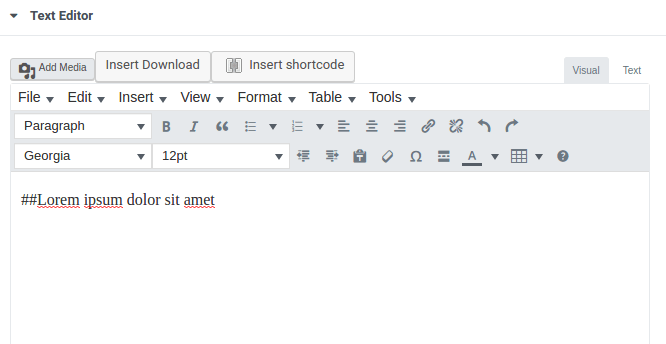
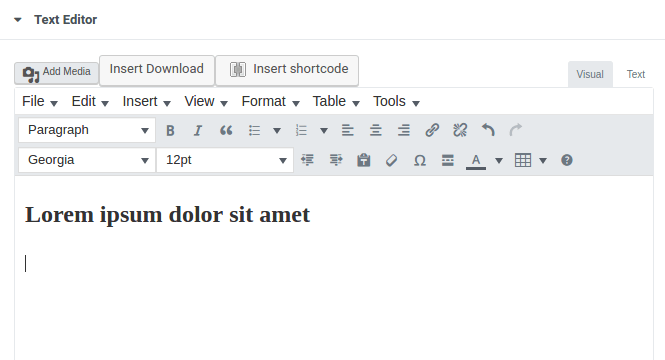
Using the “#” ash tag twice before a word or a phrase will result in changing the formatting into a H2 header. But remember after the word or the phrase you will have to press enter otherwise the shortcut will not work.
Here is an example below:
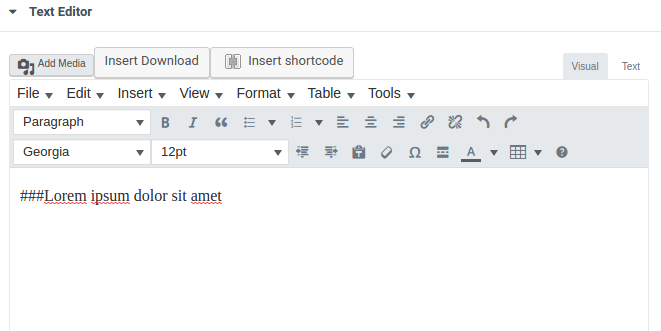
You can do the same with three “#” and you will have header type H3
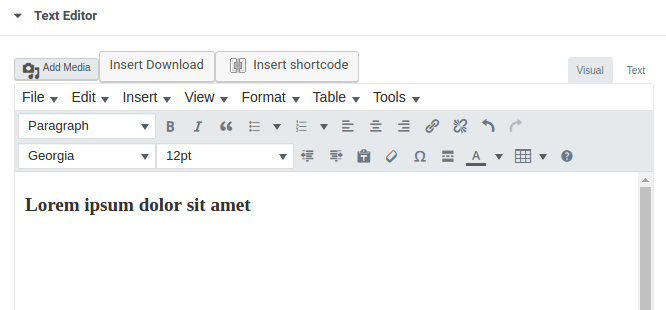
You can try the same but with four “#” and you will get an H4 heading, 5 “#” and you will get an H5 and so on.
Now that you are clear with the system of adding a symbol here are a few more:
Number + a dot + a space + enter will give you an Ordered list. If this doesn’t work try by pressing enter on the keyboard before the line where you want the list to appear so that you make sure there is a line break from the previous paragraph.
* + space will give you an unordered list. As per previous line remember that you need to be on a new line.
> + space + word or phrase + enter will give you a blocquote
Lorem Ipsum
If you like to use shortcuts and think that they could improve your productivity give it a try and see how well you can do. In the third and final part of this tutorial, (coming soon), I will go ahead and show you how to use shortcuts to moderate comments and to use the distraction free editor mode.
Thanks for checking in and as usual, keep hacking..!@@!

Digital Designer, blog writer and also a tech enthusiast.
He loves to write content for blogs, podcasts, design websites, logos, brochures, banners and anything that sends a message to an audience.
You can contact Daniele at the link below:


