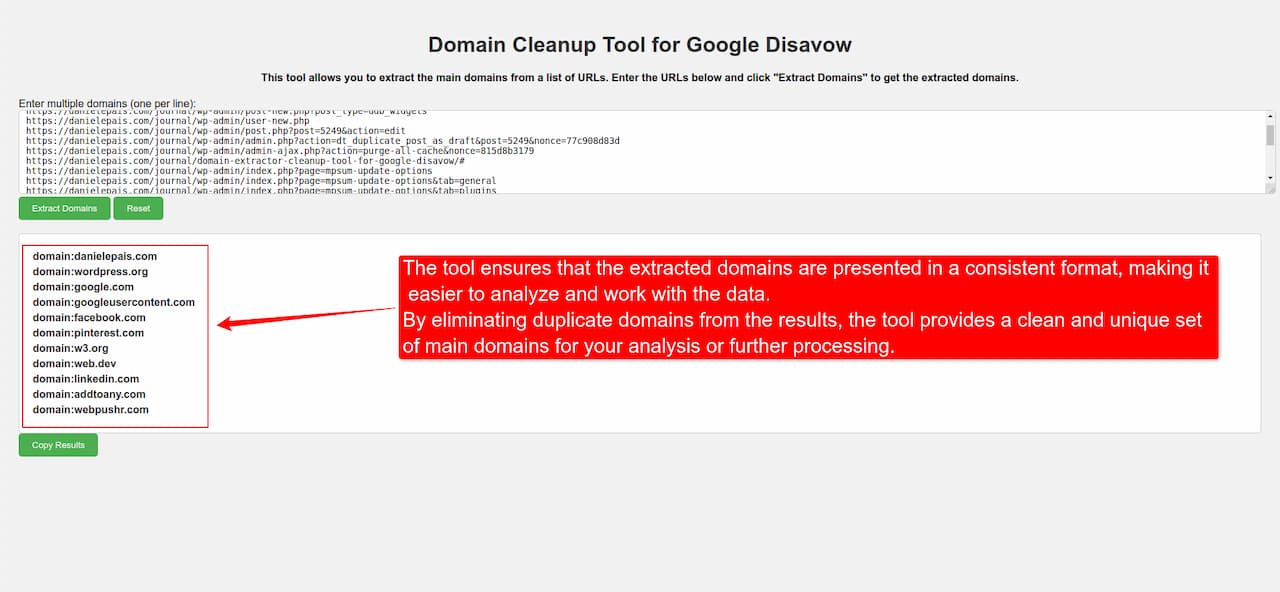
How can Domain Extractor help you? First let’s talk of what it is for.

Its purpose is to help you to clean up huge lists of unwanted domains that link to to your site so that you can upload your list to Google Search Console disavow tool.
Table of Contents
What the Google disavow tool is for
Google Search Console offers a service called “Disavow” that allows users to report unwanted or harmful links to their website. This tool is useful when you want to inform Google that you want to disassociate from certain links that may have a negative impact on your site’s reputation or its position in search results.
The Disavow service allows users to upload a text file listing the URLs of the links they want to disavow. It’s important to note that the Disavow service should be used only after exhausting all other attempts to manually remove unwanted links. Typically, you should try to contact the webmasters of the sites containing the unwanted links and request removal before using the Disavow service.
Once you submit the disavow file through Google Search Console, Google will consider it as a suggestion to ignore those specific links when assessing your website’s ranking. However, it’s important to understand that using the Disavow service does not guarantee that the disavowed links will be completely ignored by Google, as they may still be taken into account in certain circumstances.
The Disavow service should be used with caution and only when necessary. It is recommended to thoroughly analyze and evaluate the links you want to disavow before submitting them through the Disavow tool. It’s also important to regularly monitor your website’s backlink profile and take necessary actions to maintain a healthy and high-quality link profile.
Using the Domain Extractor
The Domain Extractor tool is simple to use. The steps are as follows:
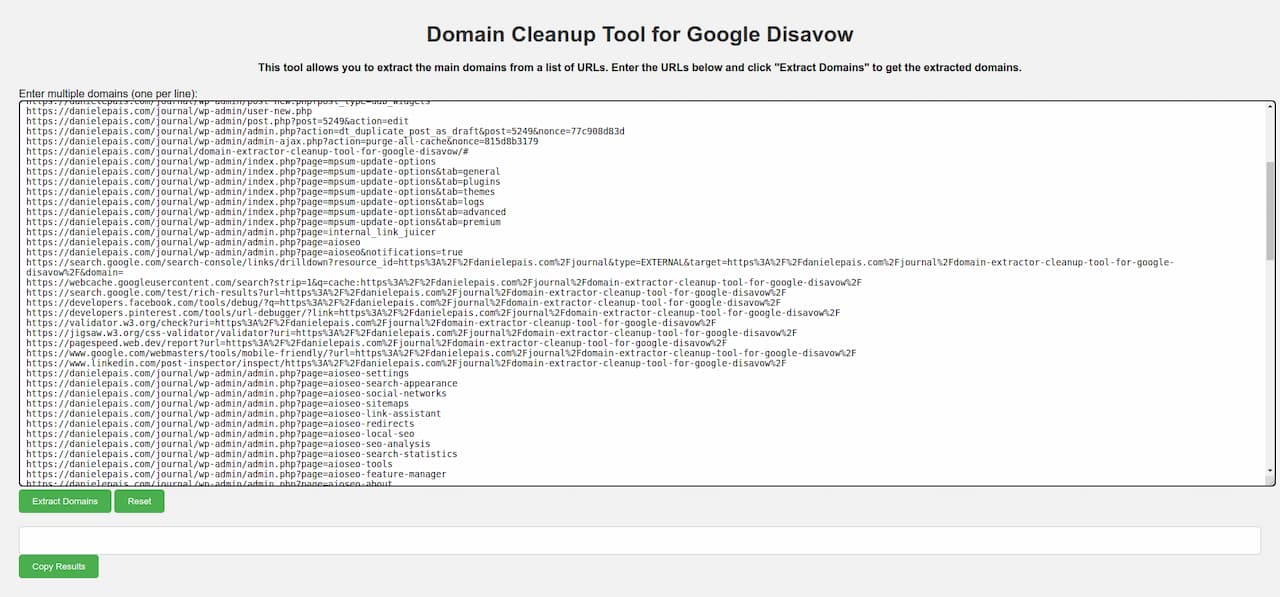
- Enter URLs: Copy and paste your list of URLs into the tool’s website’s input area. Multiple URLs may be used, each on a separate line.
- Extract Domains: To start the extraction process, click the “Extract Domains” button. The tool will take the URLs and extract the primary domains, then display the findings on the screen.
- Examine the outcomes: It will display the extracted principal domains in a tidy and structured manner. Each domain shall have the prefix “domain:” to identify it as such.
- Copy the Results: Click the “Copy Results” button to copy the extracted domains. You may easily paste the domains into other programs or documents by using the tool to copy them to your clipboard.
- Reset or Start Over: You can click the “Reset” button to clear the input box and begin with a new set of URLs.
-YOUR LIST BEFORE CLEANUP-
-YOUR LIST AFTER CLEANUP-