


If you are a Web Designer and are using WordPress as your CMS of Choice chances are that you could be faster and more productive if using the WP included keyboard shortcuts. If you aren’t using WordPress for your blog, but thinking of it, then you might want to read this article from the guys at BOYO.
As when using image editors and other software on your computer for your daily design and editing work, WordPress will take large part of your day, so why not speed up the process and become a master.
It is hard to believe but true, I know developers and designers that use WordPress from years and still do not use this amazing feature.
As for myself, it is a feature that I use a lot with WordPress, Gimp and Inkskape, (the three Linux Softwares always fired on on my production machine), I have to say that it not only saves me tons of time but makes my workflow easier to digest.
Enough with the presentations, this will be a mini series where I will go through the various ways to use keyboard shortcut in WordPress and today I would like to start with the ones regarding the “Editor”.
These shortcuts are probably among the ones you could use the most but before we go through them let me remind you that if you have just started with WordPress and tried the keyboard shortcuts but no luck, do not despair.
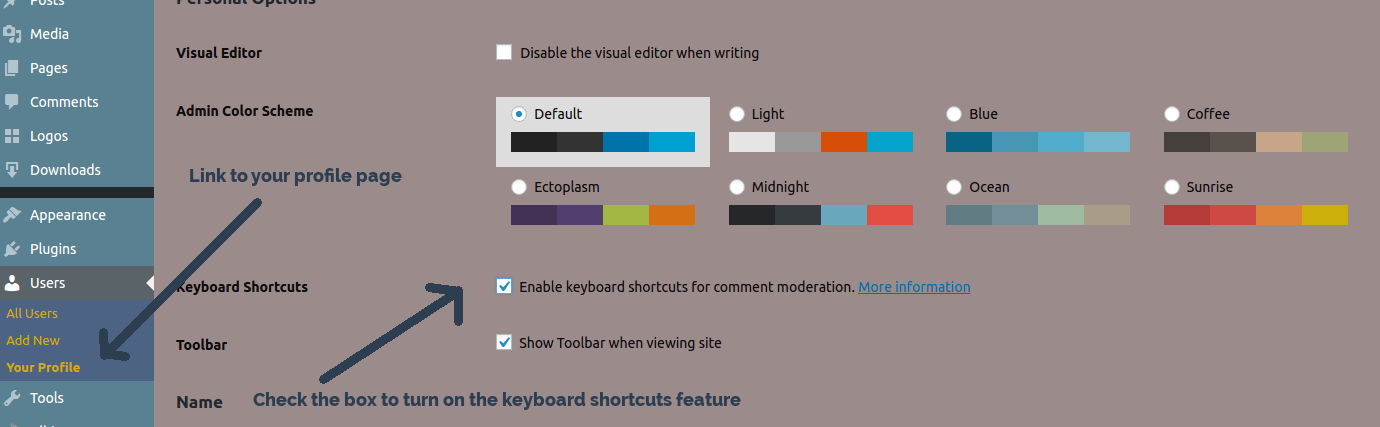
This is probably because the feature is turned off by default so in order to turn it on head on to your dashboard and hover on top of the user link on the admin menu (left side), click on the link “Your Profile” and once you get to that you will see that you have a checkbox to click in order to activate the option, (see screenshot below).
Allright then, here it comes:
WordPress Keyboard Shortcuts Part 1 – The Editor
SHORTCUT / ACTION
Ctrl + z = Undo
Ctrl + y = Redo
Ctrl + b = Bold
Ctrl + i = Italic
Ctrl + u = Underline
Ctrl + k = Insert Link
Ctrl + 9 = Address
SHORTCUT / ACTION
Alt + Shift + l = Align Left
Alt + Shift + j = Justify Text
Alt + Shift + c = Align Center
Alt + Shift + d = Strikethrough
Alt + Shift + r = Align Right
Alt + Shift + u = Bulleted List
Alt + Shift + o = Numbered List
Alt + Shift + s = Remove Link
Alt + Shift + q = Quote
Alt + Shift + m = Insert Image
Alt + Shift + p = Insert Page Break
Alt + Shift + 1-5 = Headings 1-5
That’s it for today’s session. It is better to start from the basics and familiarize with this shortcuts and how / when to use them. Do not worry if at the beginning you still find yourself reaching for the mouse, it is normal, eventually you will do less and less of that amd much more from the keyboard.
If you like to use shortcuts and think that they could improve your productivity give it a try and see how well you can do. In the second part of this tutorial, (coming soon), I will go ahead and show you some more advanced shortcuts and tricks but for the time being is good that you make some “field experience” with this.
Thanks for checking in and as usual, keep hacking..!@@!

Digital Designer, blog writer and also a tech enthusiast.
He loves to write content for blogs, podcasts, design websites, logos, brochures, banners and anything that sends a message to an audience.
You can contact Daniele at the link below:


