
I decided to write this WordPress how to article after thinking long and hard about the frequently asked questions by clients to whom we have built a site in WordPress but of which they were unfamiliar.
 WORDPRESS HOW TO
Therefore, we can say that if you who are reading this are “veterans” of WordPress, then you may as well dispense with reading further because this article is intended to help those who are newbies and have some of the simplest but frequently asked questions that we have received. Well, let’s get started right away.
Table of Contents
WordPress how to: Add a page to a menu
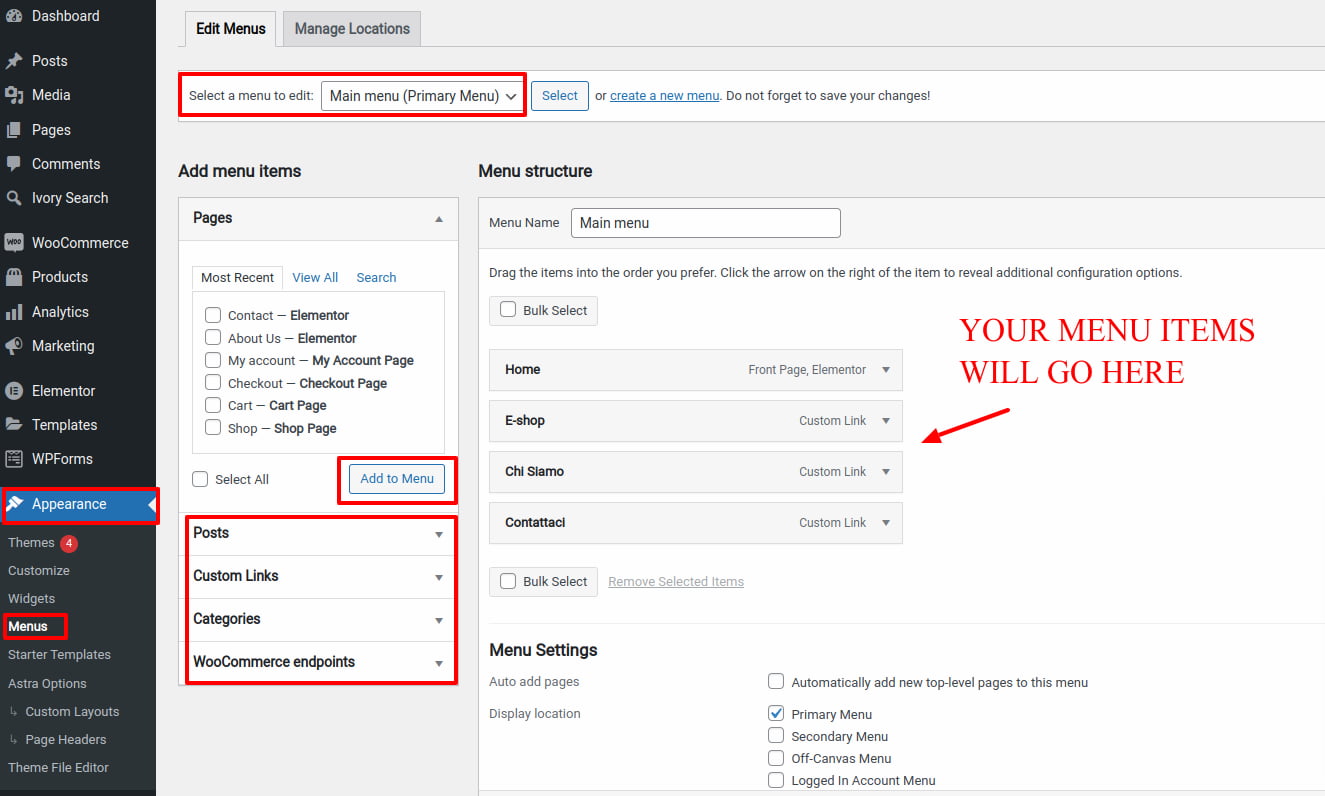
To add a page to the menu in WordPress, follow these steps:
- Log in to the WordPress dashboard and go to the “Appearance” section.
- Click on the “Menus” option.
- In the “Menu Structure” section, you will see a list of available pages.
- Find the page you want to add to the menu and click the checkbox next to it.
- Click the “Add to Menu” button. The page will be added to the bottom of the menu structure.
- You can click and drag the page to rearrange its position in the menu.
- When you are finished, click the “Save Menu” button to save your changes.
WordPress how to: Duplicate a page
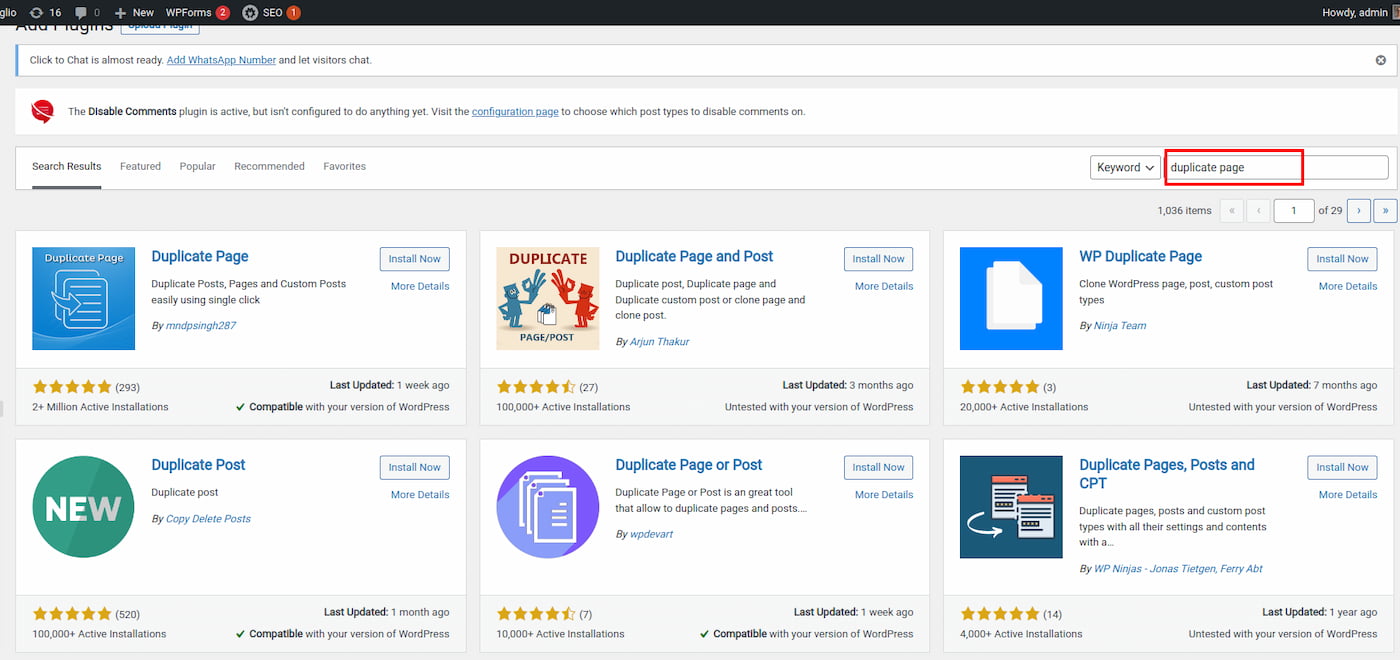
To duplicate a page in WordPress, you can use one of the following methods:
Using a plugin:
- Install and activate the “Duplicate Page” plugin.
- Go to the page you want to duplicate and click on the “Duplicate This” button.
- The plugin will create a copy of the page with the same content and title, but with “(Copy)” added to the end of the title.
Using the WordPress editor
- Go to the page you want to duplicate and click on the “Duplicate” button in the WordPress editor.
- This will create a copy of the page with the same content and title, but with “(Copy)” added to the end of the title.
Manually copying and pasting
- Go to the page you want to duplicate and make a copy of the content.
- Create a new page and paste the copied content into it.
- Change the title and any other relevant details as needed.
WordPress how to: Set Homepage
To set the homepage in WordPress, follow these steps:
- Log in to the WordPress dashboard and go to the “Settings” section.
- Click on the “Reading” option.
- Under the “Front page displays” heading, select the “A static page” option.
- From the “Front page” dropdown menu, select the page you want to use as the homepage.
- From the “Posts page” dropdown menu, select the page you want to use as the blog page (if you want to display your blog posts on a separate page).
- Click the “Save Changes” button to save your changes.

WordPress how to: Edit footer
To edit the footer in WordPress, you can use one of the following methods:
Using a theme with a footer customization option
- Many WordPress themes include a footer customization option that allows you to edit the footer directly from the WordPress dashboard.
- To access this option, log in to the WordPress dashboard and go to the “Appearance” section.
- Click on the “Customize” option.
- Look for a “Footer” or “Widgets” section, where you will be able to add or edit the content of the footer.
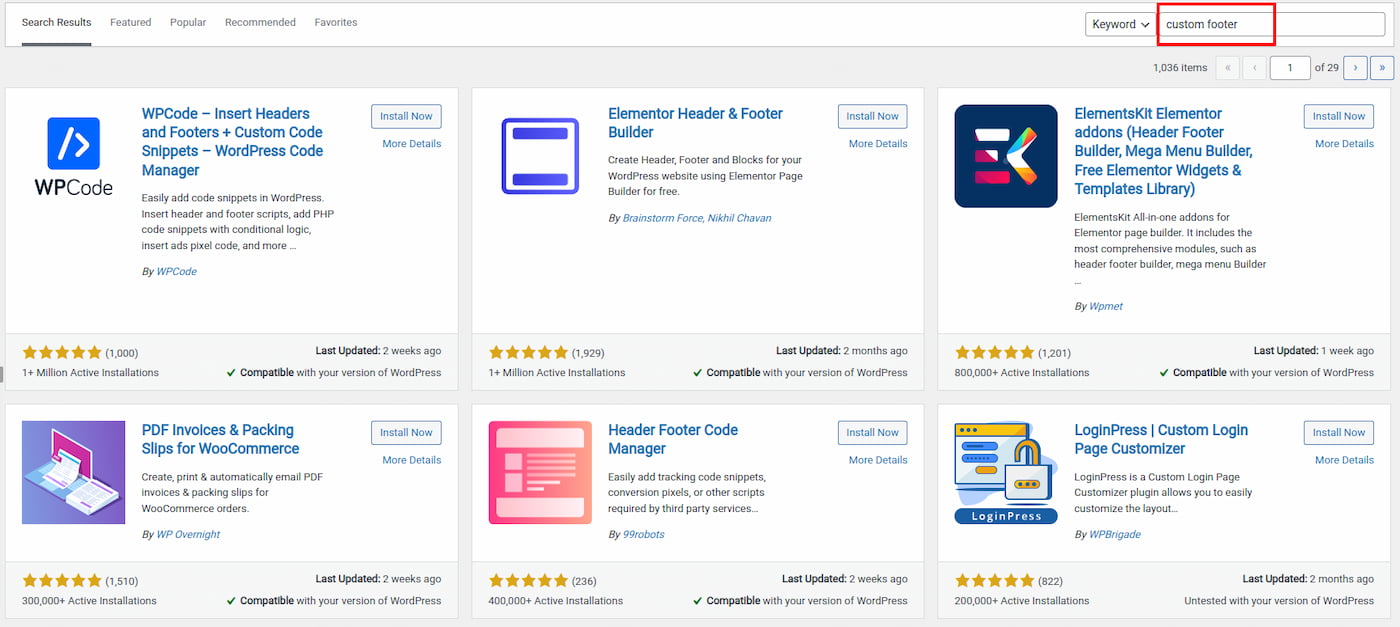
Using a plugin
- Install and activate a footer plugin, such as “Custom Footer.”
- Go to the “Appearance” section and click on the “Custom Footer” option.
- From here, you can edit the footer content and style as desired.
Editing the theme’s footer file
- If your theme does not have a footer customization option and you are comfortable with coding, you can edit the footer file directly.
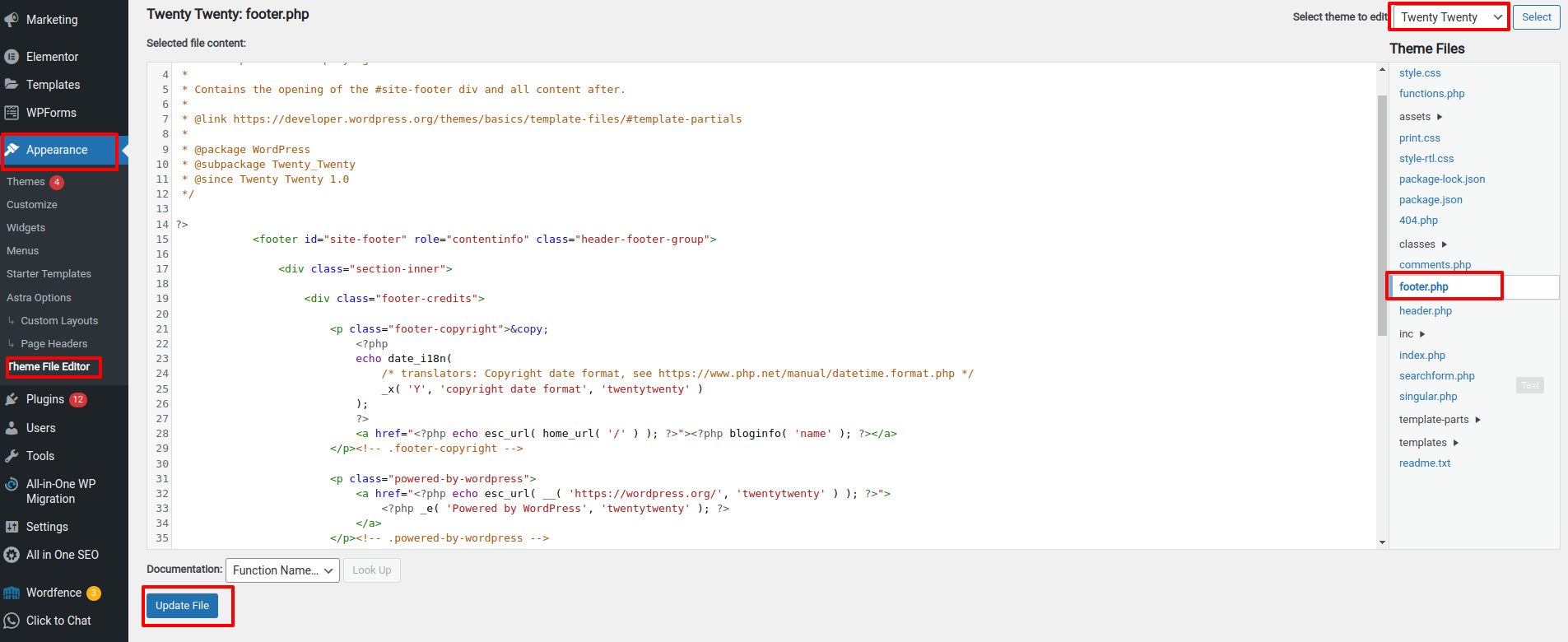
- To do this, go to the “Appearance” section and click on the “Editor” option.
- On the right side of the screen, you will see a list of theme files. Look for the file labeled “footer.php” and click on it.
- This will open the footer file in the editor. You can make any necessary changes and click the “Update File” button to save your changes.
WordPress how to: Change homepage
To change the homepage in WordPress, follow these steps:
- Log in to the WordPress dashboard and go to the “Settings” section.
- Click on the “Reading” option.
- Under the “Front page displays” heading, select the “A static page” option.
- From the “Front page” dropdown menu, select the page you want to use as the homepage.
- From the “Posts page” dropdown menu, select the page you want to use as the blog page (if you want to display your blog posts on a separate page).
- Click the “Save Changes” button to save your changes.
WordPress how to: Edit header
To edit the header in WordPress, you can use one of the following methods:
Using a theme with a header customization option
- Many WordPress themes include a header customization option that allows you to edit the header directly from the WordPress dashboard.
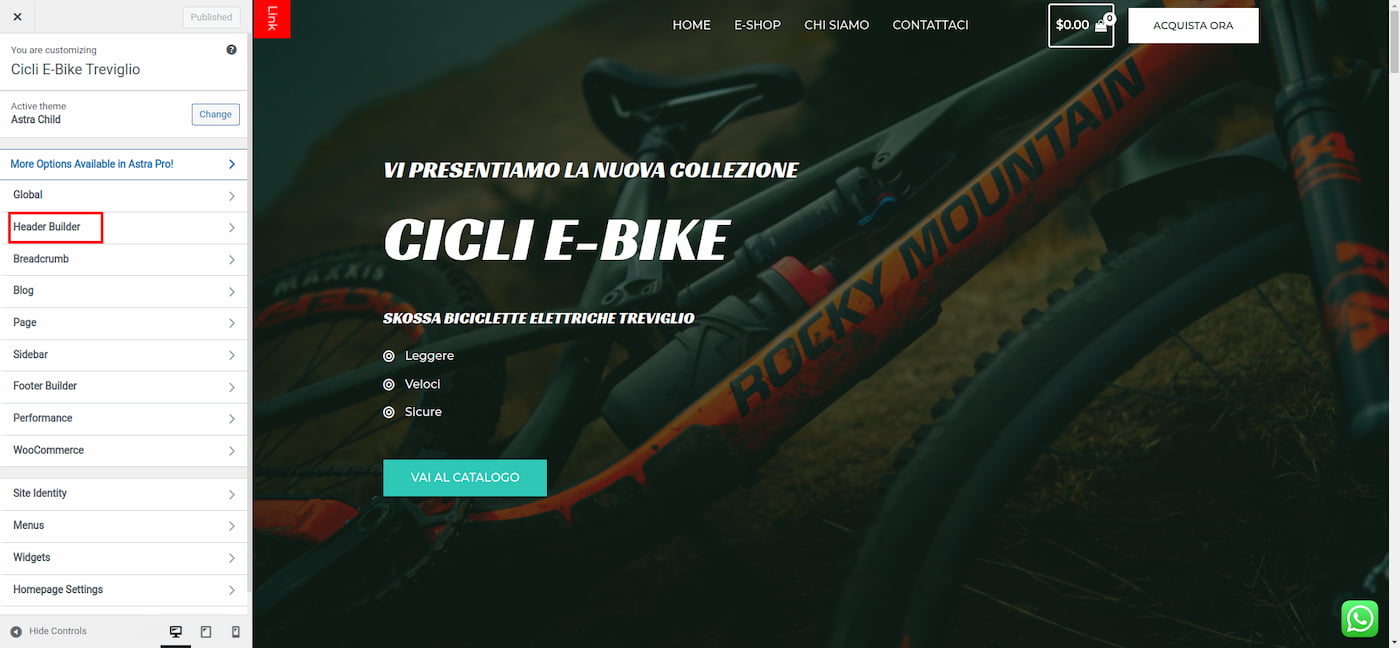
- To access this option, log in to the WordPress dashboard and go to the “Appearance” section.
- Click on the “Customize” option.
- Look for a “Header” or “Widgets” section, where you will be able to add or edit the content of the header.
Using a plugin
- Install and activate a header plugin, such as “Custom Header.”
- Go to the “Appearance” section and click on the “Custom Header” option.
- From here, you can edit the header content and style as desired.
Editing the theme’s header file
- If your theme does not have a header customization option and you are comfortable with coding, you can edit the header file directly.
- To do this, go to the “Appearance” section and click on the “Editor” option.
- On the right side of the screen, you will see a list of theme files. Look for the file labeled “header.php” and click on it.
- This will open the header file in the editor. You can make any necessary changes and click the “Update File” button to save your changes.
WordPress how to: Clear cache
To clear the cache in WordPress, you can use one of the following methods:
Using a caching plugin
- If you are using a caching plugin, such as W3 Total Cache or WP Super Cache, you can clear the cache from the plugin’s settings page.
- To do this, log in to the WordPress dashboard and go to the “Settings” section.
- Click on the name of your caching plugin.
- Look for a “Clear cache” or “Purge cache” button and click on it.
Using the WordPress admin bar
- If you have the WordPress admin bar enabled, you can clear the cache from there.
- To do this, log in to the WordPress dashboard and hover over the “Site Name” menu at the top of the screen.
- Click on the “Clear Cache” option.
Manually deleting the cache files
- If you are unable to clear the cache using the above methods, you can try deleting the cache files manually.
- To do this, log in to your website’s hosting account and go to the “File Manager” or “cPanel.”
- Navigate to the “wp-content/cache” folder and delete the files inside.

Digital Designer, blog writer and also a tech enthusiast.
He loves to write content for blogs, podcasts, design websites, logos, brochures, banners and anything that sends a message to an audience.
You can contact Daniele at the link below:


