
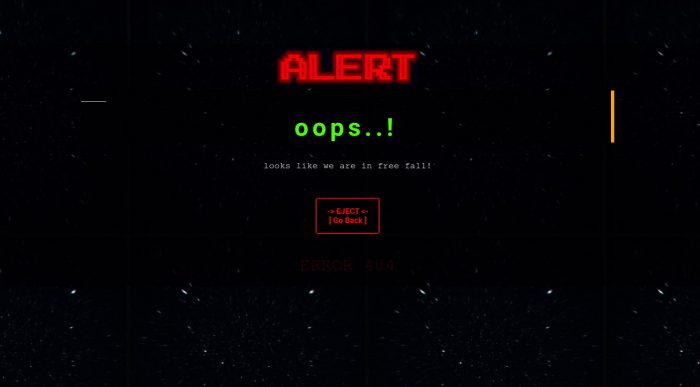

Are all Elementor Page 404 the same? Certainly not. But, first and foremost, let’s just say that a page 404 is for:
The Internet was a simple platform when compared to today’s complex world of technology and programs. It is not possible to predict how a website would behave under certain circumstances and so many things can go wrong. Webmasters and programmers are well aware when developing and designing their web pages that if a specific code is used incorrectly, it could lead to a page being unusable and could also cause search engines to label a web page as non-functional.
The question is often asked as to what is a page 404 in the context of a web browser or a script. This is because if a web page is not found when a person types a URL o clicks on a link, a so called page page 404 is returned.
The page 404 in this context is used so that to acknowledge the viewer that the page he or she is searching for is not found at that particular website. Hence the text “page not found” which is normally written next to the 404 code. Historically the page 404 has been a boring white page with black text for very long time, however in recent years we have seen a real boom in designing this pages to make it more “fun” even though it is dispatching a sad message as the website server cannot serve the page it was asked.
The terminology used to describe what is a page 404 can often cause confusion among non-technical people. In short, when a web page cannot be accessed, it does not mean that the website has been temporarily removed from the Internet – it simply means that the requested information cannot be found. For example, when someone types “football scores” into a search engine, they will almost certainly get a number of websites that offer this service. However, if the page is “missing”, it means that it was removed from the Internet and so is unavailable.
OK enough with the techy explanation, let’s have a look at this Elementor page 404. This must be arguably the most annoyingly yet amazing page 404 ever.
Not only is loaded with action but comes also with a mere 4 minutes audio background and I dare anyone to listen to it all! And, why not?…PUMP UP THE VOULME..!
You are warned, contains flashy images and distress sounds…but then, isn’t a page 404 a sort of distress call?
This 404 page is intended to be used with the Elementor FREE (obviously will work also with the PRO). being that is entirely based on an HTM file you can also run it on its own f you have a normal HTML / CSS website.
Here is a quick tutorial on how to have this page 404 up and running in less than 5 minutes.
STEP 1
1- copy the code below
STEP 2
2- Create a new page
STEP 3
Select the Elementor Canvas as per the post attributes “Template”
STEP 4
Now open the page with Elementor
STEP 5
Drag a HTML widget to the page
STEP 6
Paste the HTML code you have just copied into the widget
STEP 7
Save the page and preview. You should be now ready to see the masterpiece.
How to save a page as page 404
Elementor PRO let you set any of your page as the 404, however, you can still do it with the free version. Here is how:
1- Check whether you theme has that option and if it has just select your new page 404 for it
2- If your theme does not have the option, then you can use a plugin such as this one: from Peter Raschendorfer 404page – your smart custom 404 error page
That’s it, once you have set the 404 page via your theme or via the plugin you can test it by typing your URL followed by a non existing page so that the 404 should kick in.
Enjoy your newest creation with Elementor and have fun coding.
You can follow this link to see how the page will look [and sound] like
HERE IS THE CODE FOR YOUR ELEMENTOR HTML WIDGET
</p>
<p>
<style type="text/css">
body {<br />
background:#000;<br />
background-image: url("https://media.giphy.com/media/26n6G8lRMOrYC6rFS/giphy.gif");<br />
background-repeat: repeat;<br />
color:#ffffff;<br />
font-family:courier;<br />
font-size:14pt;<br />
text-align:center;<br />
margin:100px;<br />
}</p>
<p>blink {<br />
color:yellow;<br />
}</p>
<p>.neg {<br />
background:#fff;<br />
color:#0000aa;<br />
padding:2px 8px;<br />
font-weight:bold;<br />
font-size: 10em;<br />
}</p>
<p>p {<br />
margin:30px 100px;<br />
text-align:left;<br />
}</p>
<p>a,a:hover {<br />
color:inherit;<br />
font:inherit;<br />
}</p>
<p>.menu {<br />
text-align:center;<br />
margin-top:50px;<br />
}</p>
<p>.typewriter h1 {<br />
overflow: hidden; /* Ensures the content is not revealed until the animation */<br />
border-right: .15em solid orange; /* The typwriter cursor */<br />
white-space: nowrap; /* Keeps the content on a single line */<br />
margin: 0 auto; /* Gives that scrolling effect as the typing happens */<br />
letter-spacing: .15em; /* Adjust as needed */<br />
animation:<br />
typing 4.5s steps(40, end),<br />
blink-caret .75s step-end infinite;<br />
}</p>
<p>/* The typing effect */<br />
@keyframes typing {<br />
from { width: 0 }<br />
to { width: 100% }<br />
}</p>
<p>/* The typewriter cursor effect */<br />
@keyframes blink-caret {<br />
from, to { border-color: transparent }<br />
50% { border-color: orange; }<br />
}</p>
<p>.typewriter2 h1 {<br />
overflow: hidden; /* Ensures the content is not revealed until the animation */<br />
border-right: .15em solid orange; /* The typwriter cursor */<br />
white-space: nowrap; /* Keeps the content on a single line */<br />
margin: 0 auto; /* Gives that scrolling effect as the typing happens */<br />
letter-spacing: .15em; /* Adjust as needed */<br />
animation:<br />
typing 4.5s steps(40, end),<br />
blink-caret .75s step-end infinite;<br />
}</p>
<p>/* The typing effect */<br />
@keyframes typing {<br />
from { width: 0 }<br />
to { width: 100% }<br />
}</p>
<p>/* The typewriter cursor effect */<br />
@keyframes blink-caret {<br />
from, to { border-color: transparent }<br />
50% { border-color: orange; }<br />
}</p>
<p>.blink_me {<br />
animation: blinker 1s linear infinite;<br />
}</p>
<p>@keyframes blinker {<br />
50% { opacity: 0; }<br />
}</p>
<p>.button1 {<br />
background-color: rgba(0, 0, 0, 0.5);<br />
color: red;<br />
border: 2px solid red;<br />
}</p>
</style>
</p>
<p> </p>
<div align="center"><audio style="width: 220px;" loop="loop" controls="controls"><source src="https://binary10.space/red-alert/alert.mp3" type="audio/mpeg" /></audio></div>
<div class="typewriter"><img src="https://binary10.space/red-alert/Alert.gif" alt="Red-Alert by Daniele Pais" width="300" height="" />
<h1 style="color: #4cff00; background-color: rgba(0, 0, 0, 0.5);">oops..!</h1>
<p><br />
looks like we are in free fall!</p>
</div>
<div class="menu">
<p><a href="/" data-wpel-link="internal"><button class="button1">-> EJECT <-</button></a></p>
</div>
<p> </p>
<div class="typewriter2"><span class="blink_me" style="text-align: center; font-size: 2em; color: red;">ERROR 404</span></div>
<p><br />

Digital Designer, blog writer and also a tech enthusiast.
He loves to write content for blogs, podcasts, design websites, logos, brochures, banners and anything that sends a message to an audience.
You can contact Daniele at the link below:


