


Find any of this articles useful? You are welcome to subscribe to my newsletter, (link on the right sidebar for desktop view and down below for Mobile view).
One of the first points to stress is that Elementor is free and you can extend basic functions by purchasing a Pro license.
So no initial expenses, unlike other page builders such as the Divi Page builder that is closely linked to the purchase of one of the packages that Elegant Themes offers. You can download Elementor directly from WordPress.org or from the plugin section of the WordPress platform.
Once installed is easy to use, you can edit both the posts and the pages of your website, working with the live page builder and we’ll see later how to do it, you can import the layouts ready, you can create and save your custom layouts and then reuse them wherever you want. It is of extreme simplicity, immediacy and speed that makes it the best page builder for WordPress around.
The thing that really makes the difference compared to other WordPress page builders is that Elementor does not mess the code of the page or article where you’re going to use it.
Install Elementor
Installing Elementor is very simple, just follow these 3 simple steps:
- Go to the WordPress dashboard
- Under the heading “Plugin” click on “Add new”
- From the search toolbar insert the name “Elementor” once you have identified the plugin, click on “Install now” and immediately after “Activate” to activate the plugin.
You can also install Elementor, by downloading it directly from WordPress.org.
In this case, click on “Upload plugin” located next to the word “Add plugin” a window will open to upload the plugin in .zip format, upload the file and click on “Install Now” and immediately after the installation, Activate the plugin.
How to use Elementor
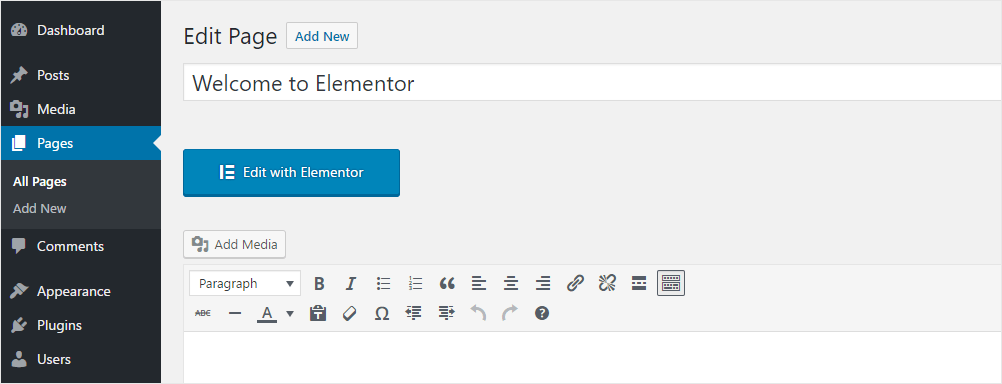
To start using the Elementor page builder, all you have to do is create a new page or article for your website. Once the new page is created, you will see under the title a blue button with the words “Edit with Elementor”.
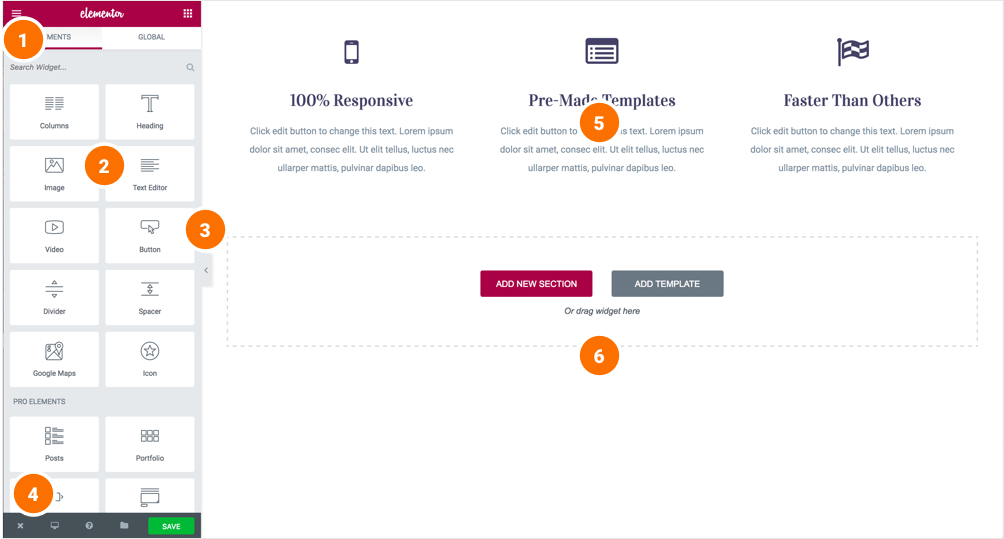
Click on the blue button, and in a few seconds Elementor’s Live Page Builder will be loaded. Upon upload, you will have all the features of the page builder available. Start creating your web page layout, add a section and start inserting images, headers, videos, icons, maps, counters, icon lists and much more. Use the drag & drop system, to insert the modules in the sections, you simply need to drag them. Once you have created your layout, you can proceed with publication by clicking on the “Save” button and you can also save the layout in the library by clicking on the folder icon.
How to load a preloaded template with Elementor
Loading a ready layout is very simple, create a new page, open Elementor and you will have 2 options “Add a new section” and “Add Template” in front of it, click on “Add Template”. Now, choose the layout you want to load and click on the green “Insert” button to insert the Elementor template on the page. Here is your layout ready to use !!!
With Elementor Pro, you will have all the packages available for the page builder, over 50 ready layouts and additional modules to create your website.
A complete website, effortless and completely editable.
Pros and cons of Elementor page builder
The Pro of Elementor:
- Free
- Fast
- Easy to use
- Clean code
- Live page builder
- Included templates to use with one click
- You can save your favorite layouts
- You can edit and save your favorite forms
- It is compatible with all WordPress themes
- You can export your layouts for use on other websites
- You can extend the functionality of the page builder with the Pro license
Cons of Elementor:
After one year, you can continue using Elementor Pro, but you will need to renew your license to receive updates and support.
Overall
Definitely an excellent investment, whether you choose the Free license or choose the Pro version of Elementor.
Well, I hope you enjoyed the reading and if you fell like you want to say your opinion, please fell free to jot down a comment or your idea. I will be back soon with always new topics, until then, keep creative.. !

Digital Designer, blog writer and also a tech enthusiast.
He loves to write content for blogs, podcasts, design websites, logos, brochures, banners and anything that sends a message to an audience.
You can contact Daniele at the link below:


