
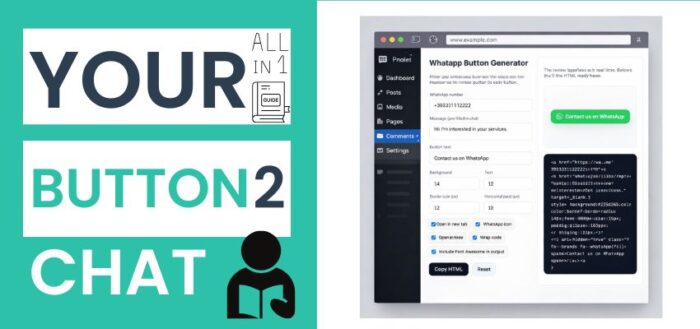
Build a WhatsApp Button Generator With Custom Message Text (Complete Tutorial).

Adding a WhatsApp button to a website is one of the fastest ways to turn visitors into real conversations.
Instead of filling out forms or sending emails, users can contact you instantly with one tap — and the message is already written for them.
In this tutorial you’ll learn how a WhatsApp button generator works, how to build one step by step using HTML and JavaScript, and how to use a ready-made free script if you prefer not to code everything yourself.
This guide is written for:
-
Beginner web developers learning HTML and JavaScript
-
WordPress users with limited coding experience
-
Small business owners managing their own websites
-
Marketing professionals building landing pages
You can follow along to understand the logic, or jump directly to the finished tool later in the article.
Table of Contents
What Is a WhatsApp Button Generator?
A WhatsApp button generator is a small web tool that creates a clickable button which:
-
Opens WhatsApp or WhatsApp Web
-
Targets a specific phone number
-
Automatically inserts a predefined message
-
Works on mobile and desktop
When a visitor clicks the button, the conversation is ready to start.
Who Benefits From a WhatsApp Button?
WhatsApp buttons are extremely effective for:
-
Local businesses
-
Freelancers and consultants
-
Restaurants and hotels
-
Service-based websites
-
WordPress landing pages
-
Advertising funnels
Because WhatsApp is already installed on most smartphones, the conversion barrier is extremely low.
How WhatsApp Click-to-Chat Works
WhatsApp officially supports two link formats.
wa.me (recommended)
https://wa.me/PHONE_NUMBER?text=MESSAGE
api.whatsapp.com
https://api.whatsapp.com/send?phone=PHONE_NUMBER&text=MESSAGE
Note: Our generator allows users to choose either one — which is ideal for compatibility and testing.
Important rules:
-
Phone number must include country code (no spaces or symbols)
-
Message must be URL-encoded
-
Spaces become
%20
JavaScript will handle this encoding for us.
What We Are Building
The WhatsApp button generator you shared includes:
-
Phone number input with country code
-
Message auto-encoding
-
Choice of WhatsApp endpoint
-
Custom button text
-
Background and text color picker
-
Border radius and font size controls
-
Padding customization
-
Optional WhatsApp icon
-
Optional Font Awesome inclusion
-
Live preview
-
Ready-to-copy HTML output
-
Multilanguage interface (IT / EN)
Everything updates in real time.
Step 1 – Basic HTML Structure
At its core, the generator is made of simple inputs.
<input type="text" id="phone" placeholder="393331112222">

<textarea id="message">
Hi! I’d like more information.
</textarea>

<input type="text" id="btnText" value="Contact me on WhatsApp">

<button id="copyBtn">Copy HTML</button>

<pre id="output"></pre>
Each field controls one part of the final button.
Step 2 – Sanitizing the Phone Number
WhatsApp requires numbers only.
That’s why your script removes all non-numeric characters.
function sanitizePhone(raw) {
 return raw.replace(/[^\d]/g, "");
}
This prevents broken links caused by spaces, plus signs, or dashes.
Step 3 – Encoding the Message Correctly
Messages must be URL-encoded.
encodeURIComponent(message);
Example:
Hi, I need info!
becomes:
Hi%2C%20I%20need%20info%21
Without encoding, WhatsApp links may fail.
Step 4 – Building the WhatsApp URL
Our generator dynamically builds the correct URL:
https://wa.me/PHONE?text=MESSAGE
or:
https://api.whatsapp.com/send?phone=PHONE&text=MESSAGE
based on the selected endpoint.
Step 5 – Creating the Button HTML
The final output is a fully styled <a> tag:
-
inline CSS
-
hover animation
-
custom colors
-
responsive padding
-
optional WhatsApp icon
Example output:
<a href="https://wa.me/393331112222?text=Hello"
 target="_blank"
 style="background:#25D366;color:#fff;">
 Contact me on WhatsApp
</a>
This HTML can be pasted anywhere.
Live Preview and Copy-Ready Code
One of the strongest features of our generator is that:
-
the preview updates instantly
-
the exact HTML is displayed below
-
users can copy the code with one click
No guessing, no manual editing.
What you see is exactly what you paste.
At This Point, You Have a Working Generator
You can already:
-
Generate WhatsApp chat links
-
Customize the message text
-
Use it on any website
-
Embed it inside WordPress
WhatsApp Button Generator Special Features
Perfect now that we have got the basics, let’s talk of customizations. You’ll notice that on our WhatsApp Button Generator left area is basically the “button styling + behavior” control panel. It’s the part that turns a plain WhatsApp link into a brand-consistent, copy-pasteable button for WordPress/Elementor.
Below is a clear breakdown of each control in that section, what it changes in the generated output, and a few practical tips (especially for WordPress users).
Button Text
What it does
-
This sets the visible label on the button (the text inside the
<span>).
Why it matters
-
It’s the first thing users read, so keep it action-driven and specific.
Good examples
-
“Chat with us on WhatsApp”
-
“Get a quote on WhatsApp”
-
“Ask availability”
-
“Book via WhatsApp”
Tip
-
If you’re targeting mobile users, shorter text usually looks better and avoids wrapping.
Background + Text Colors
What they do
-
Background controls the button fill color.
-
Text controls the label color (and also the icon color, because the icon inherits the text color).
Why it matters
-
You can match your brand palette instead of using the default WhatsApp green.
-
Make sure contrast stays readable.
Practical combinations
-
Classic WhatsApp: green background + white text
-
Dark UI: dark background + white text
-
Light UI: light background + dark text (but make sure it still looks “clickable”)
Tip for accessibility
-
If you go with light background + white text, it will become hard to read. Always test the preview.
Border Radius (px)
What it does
-
Controls how rounded the corners are.
Common values
-
8–12: modern “soft rectangle”
-
14–18: pill-ish but still structured
-
999: full pill button
Tip
-
If you want a pill button without thinking too much, set it to something like 999.
Font Size (px)
What it does
-
Sets the font size inside the button.
Suggested ranges
-
14–16: good for most sites
-
17–18: bigger CTA, more attention
-
12–13: compact (but can feel less tappable on mobile)
Mobile tip
-
If you shrink the font too much, the button may feel “less important” and less clickable.
Vertical Padding + Horizontal Padding (px)
What they do
-
Vertical padding controls the height of the button.
-
Horizontal padding controls how wide it feels around the text.
Suggested ranges
-
Vertical: 10–14
-
Horizontal: 14–22
Why it matters
-
Padding is what makes the button feel “premium” and tappable.
-
A WhatsApp CTA should be easy to tap, especially on mobile.
Quick presets you can use
-
Balanced: Vertical 12 / Horizontal 16 (our default)
-
Bigger CTA: Vertical 14 / Horizontal 22
-
Compact: Vertical 10 / Horizontal 14
Open In New Tab
What it does
-
Adds
target="_blank"and a saferel="noopener noreferrer".
When to enable it
-
Usually yes (especially on desktop), because users don’t “lose” your site.
-
It’s also helpful when the button is inside a blog post and you want the reader to stay on the page.
When to disable it
-
If you prefer a single-flow experience (rare for WhatsApp CTAs).
-
Some UX purists prefer same-tab on mobile, but it’s not a big issue either way.
WhatsApp Icon
What it does
-
Shows/hides the WhatsApp icon on the left of the text.
Why it’s useful
-
Recognition is instant. Even if users don’t read, they understand it’s WhatsApp.
Design tip
-
If your button text is very short (like “WhatsApp”), the icon can make it feel cleaner and more “button-like.”
Wrap Code
What it does
-
This is only for readability in the code preview/output area.
-
When ON, the code is formatted across multiple lines in the
<pre>block. -
When OFF, it stays on one long line.
Important note
-
It doesn’t change what the button does. It only changes how the generated code is displayed for copying.
Include Font Awesome In Output
This one is important.
What it does
-
When enabled, the generator includes the Font Awesome stylesheet line inside the output.
Why it exists
-
The WhatsApp icon uses Font Awesome classes. If Font Awesome isn’t already loaded on the site, the icon won’t appear.
When to enable it
-
If you’re pasting the button into a site that doesn’t already load Font Awesome (common on lightweight themes).
When to disable it
-
If your site already loads Font Awesome (Elementor often does, many themes do).
-
Disabling it avoids loading the same library twice.
Practical WordPress advice
-
If you’re not sure, keep it enabled at first.
-
If you later notice your site already has Font Awesome, you can disable it to keep things cleaner.
Copy HTML Button
What it does
-
Copies the generated output straight to your clipboard.
Tip for WordPress users
-
Paste it into:
-
Elementor “HTML” widget, or
-
a Custom HTML block, or
-
wherever your builder accepts raw HTML.
-
Avoid
-
Pasting into rich visual editors that rewrite HTML (some visual modes can break attributes).
Reset Button
What it does
-
Restores defaults (colors, padding, radius, endpoint selection, checkboxes, etc.)
Useful for
-
Quickly creating multiple variants (e.g., one button for Sales, one for Support) without manually undoing changes.
The Warning Message (Yellow Box)
What it means
-
It’s a validation warning: WhatsApp needs a valid phone number with country code.
Best practice
-
Enter the number without spaces or symbols:
-
✅
393331112222 -
❌
+39 333 111 2222
-
Even if a user types +39, the generator should clean it, but it’s best to use digits only.
What Could You Add to the WhatsApp Button Generator?
Here are some suggested “next steps” for the customization panel:
-
Add a live character counter for the message and button text
Message field that shows a live X chars counter
Button text field that also shows a live X chars counter
-
Add presets with:
🔹Custom
🔹WhatsApp Classic
🔹Dark Minimal
🔹Light Outline
🔹Brand CTA (Blue)Selecting a preset automatically updates:
-
Background / text colors
-
Radius
-
Font size
-
Padding
-
Icon on/off (where relevant)
-
-
Add an option for full-width button on mobile
When enabled, the generated output should include a small CSS block that makes the button span 100% width below 600px, while keeping desktop unchanged. -
Add a toggle for center / left / right alignment (instead of fixed center)
-
Add an optional floating button output (bottom-right) in addition to inline button
🚀 Download the Complete WhatsApp Button Generator Script
If you don’t want to rebuild everything manually, you can download the full ready-to-use script for free.
It includes:
-
Clean UI
-
Responsive layout
-
Real-time preview
-
Button customization
-
Copy-to-clipboard
-
Language switch (IT / EN)
-
No dependencies
-
Works offline
-
Perfect for WordPress
👉 Free download:
https://danielepais.com/journal/free-downloads/
Simply upload the file or embed it in your project.
How to Use It in WordPress
You can integrate the generator in several ways:
Option 1 – Custom HTML block
Paste the generated button HTML directly.
Option 2 – Elementor HTML widget
Works perfectly with no conflicts.
Option 3 – Theme footer or shortcode
Ideal for persistent floating buttons.
Why WhatsApp Buttons Convert So Well
Compared to contact forms:
-
No login required
-
No email typing
-
No waiting for replies
-
Instant conversation
-
Familiar interface
For mobile users especially, WhatsApp often doubles conversion rates.
Final Thoughts
Your WhatsApp Button Generator is:
-
beginner-friendly
-
technically solid
-
extremely practical
-
WordPress-ready
Whether someone wants to learn how it works internally or simply use the finished tool, this solution covers both needs.
If you haven’t added a WhatsApp button to your site yet, this is one of the easiest improvements you can make — and one of the most effective.
Build it, customize it, publish it… and start turning visitors into conversations.
Frequently Asked Questions – WhatsApp Button Generator
What does this WhatsApp button generator do?
This tool allows you to generate a clickable WhatsApp button that opens a chat with a predefined message.
By entering a phone number and a message, the generator produces ready-to-use HTML that you can paste directly into your website.
When visitors click the button, WhatsApp opens automatically with the message already filled in.
Do I need programming skills to use it?
No.
The generator is designed for non-developers as well.
If you can copy and paste HTML, you can use this tool without writing any code.
All technical steps — link formatting, encoding, and structure — are handled automatically.
Does the button work on both mobile and desktop?
Yes.
-
On mobile devices, the WhatsApp app opens automatically.
-
On desktop computers, WhatsApp Web is opened in the browser.
The same button adapts automatically based on the user’s device.
Is this an official WhatsApp feature?
Yes.
The generator uses WhatsApp’s official “click to chat” URLs, which are publicly documented and supported by WhatsApp.
No unofficial APIs or third-party services are involved.
Why do I need to include the country code?
WhatsApp requires phone numbers to be written in international format.
✅ Correct example: 393331112222
❌ Incorrect examples: +39 333 111 2222 or 3331112222
The country code ensures WhatsApp knows which number to open globally.
Can I customize the message users see in WhatsApp?
Yes.
You can write any message you want, including:
-
greetings
-
product inquiries
-
booking requests
-
support messages
-
emojis
The message will appear automatically in the chat input field when WhatsApp opens.
Can I create more than one WhatsApp button?
Yes.
You can generate unlimited buttons for:
-
different phone numbers
-
different messages
-
different pages
-
different languages
Each generated button works independently.
Is the generated HTML safe to use?
Yes.
The output is standard HTML with inline styling.
It does not include:
-
tracking scripts
-
cookies
-
external APIs
-
server-side code
It works in any modern browser.
Does this work with WordPress?
Yes — fully.
You can paste the generated HTML into:
-
WordPress Classic Editor (Text tab)
-
Gutenberg “Custom HTML” block
-
Elementor HTML widget
-
theme templates
For best results, always use an HTML block instead of visual text editors.
Will this slow down my website?
No.
The generated button is extremely lightweight and has virtually no impact on page speed.
If your site already loads Font Awesome, you can avoid loading it twice by disabling its inclusion.
Can I edit the code after generating it?
Yes.
The output is plain HTML and CSS, so you are free to modify:
-
colors
-
spacing
-
text
-
size
-
placement
You can also integrate it into your own layouts or templates.
Does the generator work offline?
Yes.
Once downloaded, the generator works completely offline in your browser.
No internet connection is required except for WhatsApp itself when users click the button.
Is this generator free to use?
Yes.
You can use it freely for:
-
personal websites
-
business websites
-
client projects
-
commercial landing pages
No registration, license key, or attribution is required.
Can I use emojis in the message text?
Yes.
Emojis, special characters, and accented letters are automatically encoded so they work correctly inside WhatsApp messages.
What is the difference between wa.me and api.whatsapp.com?
Both are official WhatsApp link formats.
-
wa.meis newer and cleaner -
api.whatsapp.comoffers broader backward compatibility
For most websites, wa.me is recommended.
Is this better than installing a WhatsApp plugin?
In many cases, yes.
Compared to plugins, this approach:
-
adds no database load
-
avoids plugin conflicts
-
requires no updates
-
keeps full control of the markup
-
improves performance
You only include exactly what you need.
Where should I place the WhatsApp button on my website?
Common placements include:
-
contact pages
-
service pages
-
landing pages
-
blog articles
-
headers or footers
Choose a position where users naturally look for contact options.

WhatsApp Button Generator
Create a Click-to-Chat Button With Custom Message
READ MORE FROM OUR BLOG POST

Digital Designer, blog writer and also a tech enthusiast.
He loves to write content for blogs, podcasts, design websites, logos, brochures, banners and anything that sends a message to an audience.
You can contact Daniele at the link below:


