

Would you even consider doing your e-book cover with Canva? E-books and books are everywhere nowadays. What if you were tasked to create a cover for one of them?

For today’s tutorial I thought about creating a large title that covers the entire top of an e-book cover. But instead of doing it normal, that is written in big letters, we will make it as if it was cut out. Then we will put an image in the background in such a way as to create that effect as if the letters are written by the image itself. If you don’t quite understand what I’m babbling about, look at the main header image of this post and you’ll understand right away.
Table of Contents
Preface disclaimer and stuff
This is certainly not my invention, on the contrary, I remember seeing it in a travel magazine or something similar, many years ago while I was waiting in line at the dentist. At the time I liked it a lot but … as happens in many cases … then things are forgotten and we move on to something else.
Lately, however, I had been asked for an opinion on the cover of a book … and there, as if by magic, in a flash my memory returned to that type of cover, even if it was not suitable for that kind of book.
However, I decided to try for myself and do a quick one, just to see how it would turn out. the question was: How to do it fast and with an online program that absolutely “rocks”?
There is no better way (in my opinion) than using Canva to do a quick experiment, but alas, in a moment I quickly realized that in Canva I would need to use the letters found in the elements section of the “frames” category. This would be child’s play if there wasn’t a problem though.
Problem to solve
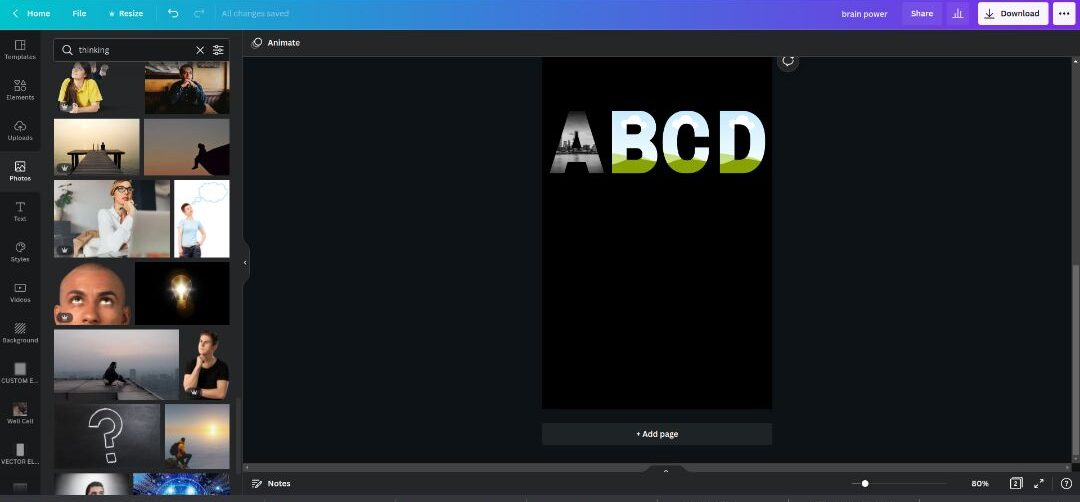
The problem is that in Canva the letters, as well as all the frames, cannot be concatenated in such a way that they have a unique background image but rather, they must be assigned a background image to each which is not the ideal thing.
Yes, I know that the most astute would say that it can be done by calculating the distance between one element and another in the photograph and placing the same image in different letters … but I didn’t like this solution so much. So starting from an idea a little more “Photoshopesque” or even “Gimpesque” if you want …and that is to create a layer mask to put on the photo.
Solution with a “layer mask”
Now this layer mask obviously does not exist in the canva elements or templates so we just have to make it ourselves. This is where the fun begins. Let’s go together to make one quickly using Inkscape, which is in my opinion, the best software to create SVG (vector) elements in no time.
I wanted to create an SVG because of course we can change color as we want in Canva and we can also reduce or increase the size as we like without losing resolution and quality.
Let’s proceed with creating the mask in Inkscape
Immediately after opening Inkscape, choose the most suitable format for the mask. In my case, I chose an A4 portrait format as the cover for the ebook has very similar measurements. Exact measurements don’t matter because being an SVG we can adapt it however we want once we import it into Canva.
Very well, now that we have decided the shape of the canvas (click ctrl + shift + d to access the document properties and give it the size that suits you best) we can proceed with writing the header.

What font to choose?
For this, simply press the “T” key on your keyboard and you will have the text tool already selected and ready to use. Now since we want to give importance to the title, we should look for a fairly coarse font (in the bold sense) so that the background image has enough space to be seen and “be admired”.
If, on the other hand, we choose a font that is too fine and sophisticated, we risk losing that magical effect that the background photo gives because you would not be able to see the details of the photograph and therefore there is the risk of obtaining a bad result.
Well, to be on the safe side I used the “impact” font. If you don’t have this font and you like it, you can download it for free at this URL: https://www.dafontfree.io/impact-font/
Let’s write the title
Now let’s write the title of the book as you see in the image below.

Then, using the rectangle tool (F4) draw a rectangle and give it a color that contrasts with that of the title.

Now expand the rectangle to the full size of the canvas (far and wide).

Position the rectangle under the title so that it is visible to you.

Ready for the magic?
By clicking with the mouse in the rectangle and pressing the “shift” button on the keyboard, click also in the title so as to select both the two elements in the canvas.

Now from the menu above choose “Path” and from the drop down menu select “difference” … Kaboom! You have just cut out the title on the rectangle.

In a matter of a couple of minutes and you have your mask ready, cool isn’t it?. Now you just have to choose the color (I chose black for my project).

Let’s get ready and save everything
Well, now let’s save everything as SVG. You can choose plain SVG in the options when saving so that it is compatible with all programs that accept SVG. Now we just have to import it into Canva.

Once in Canva, we create a new design from the template choice, e-book cover is there and ready with a template of 512x800px which is very similar to our SVG in terms of size, so we choose that.
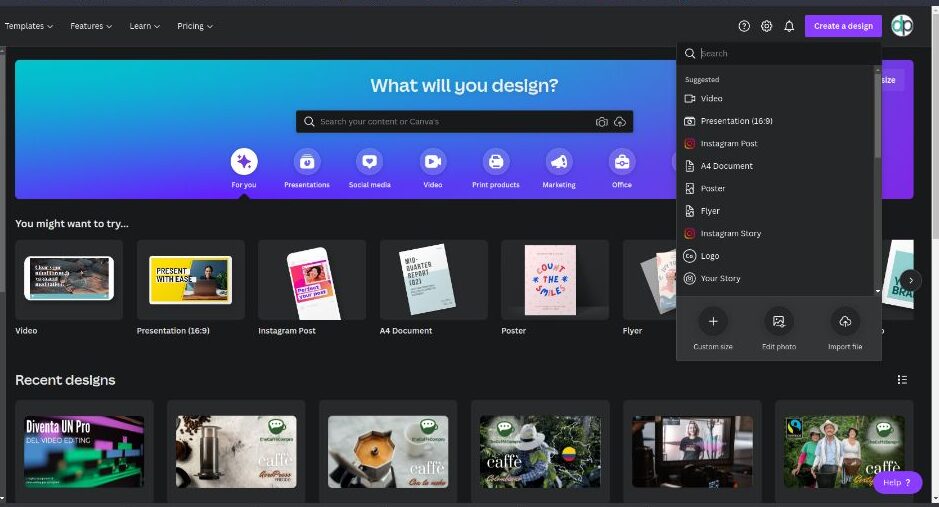
Now from the left menu we choose the uploads section or if you want you can just drag the SVG onto the Canva canvas (nice pun).
Still problems
SNAP ..! error … as we wanted to prove …we have just discovered that Inkscape is not compatible with Canva … but don’t despair, there is a remedy for everything … or at least almost everything.
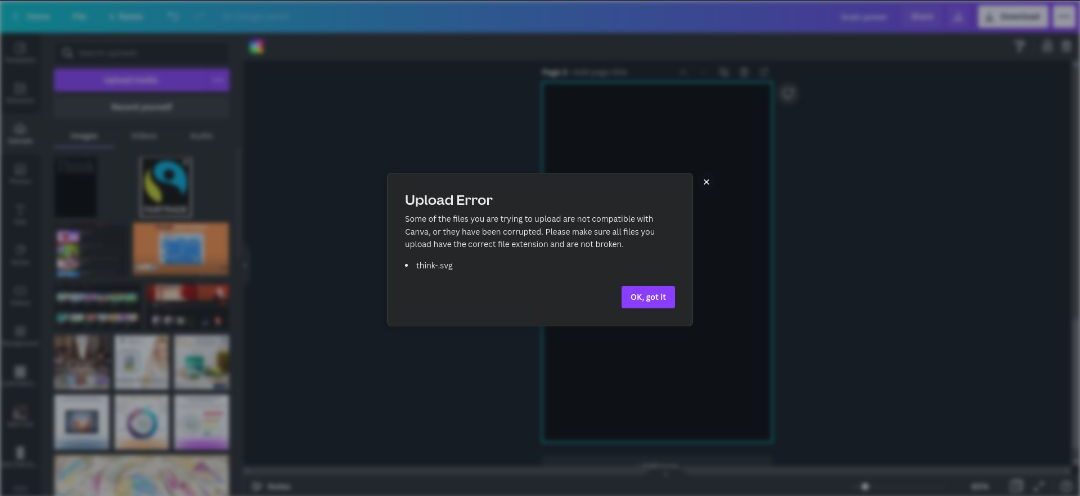
Immediate solutions
Let’s quickly go back to Inkscape and export our design as a PNG. I know what you are thinking ….. but it is an image made of pixels … not good mate… it degrades and so on …. yes I know, you are right. But we are further ahead, because we will not stop there, so trust me on this, and continue, because now I will show you a trick to “cheat” the system (LOL).
So we’re back in Inkscape: From the menu above proceed with:
- Choose the first item from the left “File”
- Select “Export PNG Image” from the drop-down menu (alternatively for the more nerds, press everything together shift + ctrl + E)

Very well, now all you have to do is make sure that you have selected the element you want to export (in this case there is only one) or directly select “Drawing” from the options as you can see in the image below at point 1. Continue with telling Inkscape where you want to save the image (step 2). Finally, click the “Export” button as in step 3.

Between confusion and perfection
Well now we have a PNG of our mask … but since we are all perfect and we don’t want a PNG we just have to convert the PNG to SVG again … yes I know … now some of you get mad and blurt out. …: – but how would it be, are you kidding us, we already had an SVG and so on…blah, blah, blah. Sure, you’re right too, but if you remember that SVG is useless because Canva is “picky” and said he doesn’t like it … so calm down and I’ll show you that with the use of yet another tool….we can stil be up to our game. So, let’s bring the situation to smiles and confetti once again.
Let’s convert the PNG
We are now online and go to this website: https://convertio.co/image-converter/. Among other things, I recommend this online tool because it is very convenient for converting various types of files and since I use it extensively, I also have the Chrome extension installed which helps a lot to reduce the time of “production”.

Well, now we just have to choose the PNG file as source and SVG as output, then click the red button “Convert” and that’s it.

We can download the vector we just converted and see if it works in Canva this time.

Bingo! It worked
Told’ya! And with that we have just completed the first part which would be the one with the use of Inkscape. Now it’s up to Canvas to do its magic.
So we have our beautiful e-book cover template blank and with nothing on it, and we just loaded the mask in SVG. Let’s drag it immediately onto the canvas and position it so that it fits at the top and is “centered” with the canvas.

Now from the left menu we choose the photo that we want to show through the title that we have cut out in our mask. in my case I chose a panorama of the city of New York in monochrome that goes well with the black cover, but you can choose the one that best suits your project. Now place the image on top of the cover. Ready for the magic?
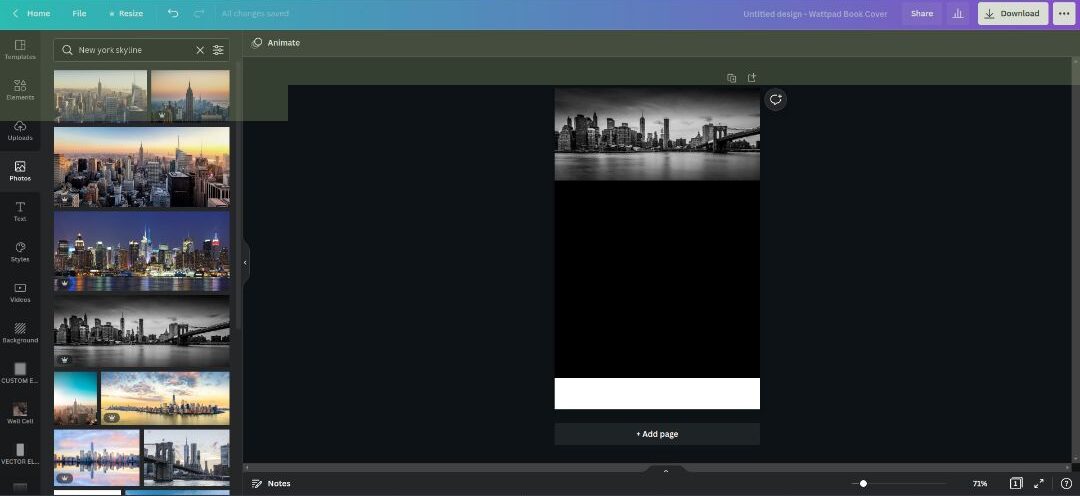
Select the image you have chosen and click at the same time ctrl + shift + [ in order to position the image as the last layer or alternatively you can do it using the right menu as in the image below.

Wow … what a treat. The title is ready. now make sure the background is all the same color by setting the color of the canvas the same as the one for the layer mask, like in the image below.

You are now ready to add any other cool elements that you deem necessary for your cover to look “cool”.

In my case I wanted to create a cover for an author’s book so I added:
- The image of the author (with a face expression similar to the title)
- Subtitles
- Name of the author
- Quick explanation of what the book is about
And here we are at the end of this little and simple tutorial. Obviously there are many other ways to achieve this or even better. if you have your own, I invite you to leave a comment, I’m curious to see how others get their designs too. But in the meantime, thank you for reading this article and I hope I haven’t bored you with monotonous things you already knew but instead enlightened your mind and sparked positive thoughts that will lead you to do so many different types of this particular design.
You can read more Canva tutorials like this here

Digital Designer, blog writer and also a tech enthusiast.
He loves to write content for blogs, podcasts, design websites, logos, brochures, banners and anything that sends a message to an audience.
You can contact Daniele at the link below:


