

BEFORE 

AFTER

USING THE LASSO TOOL IN GIMP
There is quite a few ways to remove a background from a picture using Gimp. I personally prefer doing it with the lasso tool when possible but I know that some prefer the paths tool (bezier tool in Inkscape) while some others try the best of their luck with the fuzzy select tool (magic wand). I guess it all depends from the type of background / image, the level of expertise you have with the software and your personal taste. Again some people I have talked to tells me that they are not even considering the lasso tool on a PC using a mouse but like it on tablet. I am OK with it as I have a good feel with my current mouse and have learned how to achieve good results without the need for a digital pen and a tablet. (I actually have one but use it for different purposes).
TWO QUICK TIPS
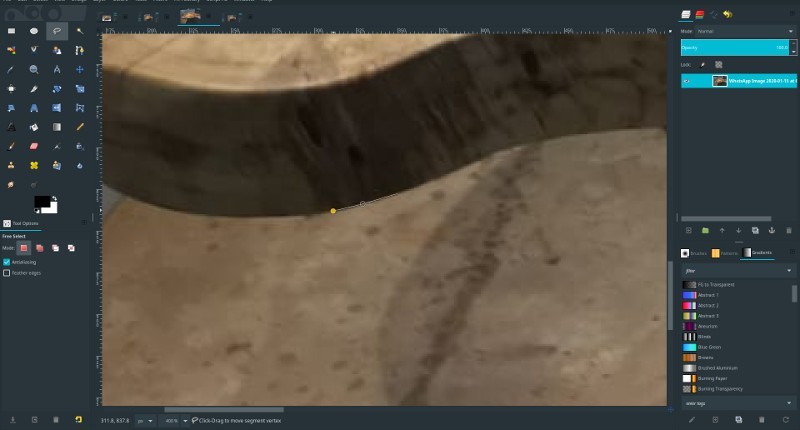

Once you have applied the lasso to you image, if you don’t want a white background, remember to add transparency by clicking from the top menu: Layer > Transparency > Add Alpha Channel.
Great, now from the select menu choose “invert” and then you can press delete from your keyboard. By choosing the invert menu you will select the area outside your selection made with the lasso….so in other words you will keep anything except the background.
If needed too you can recreate the shadows (like the example in my picture where the table casts a shadow) so that to keep the newly created image a bit more realistic. You can also add a new plain or gradient background if you like too. In my case I have added a gray/white background gradient to make the table “pop up”.
Enclosed below is a video so that you can see how I use the tools in Gimp.
Well, I hope you enjoyed the reading and if you fell like you want to say your opinion, please fell free to jot down a comment or your idea. I will be back soon with always new topics, until then, keep creative.. !

Digital Designer, blog writer and also a tech enthusiast.
He loves to write content for blogs, podcasts, design websites, logos, brochures, banners and anything that sends a message to an audience.
You can contact Daniele at the link below:


Comments are closed.